When you navigate to Tournaments & Rankings Advance, you will find a list of all the Tournaments created in your space. From here, you can filter Tournaments by state, open their configuration, create reusable copies and templates, or start a new Tournament.
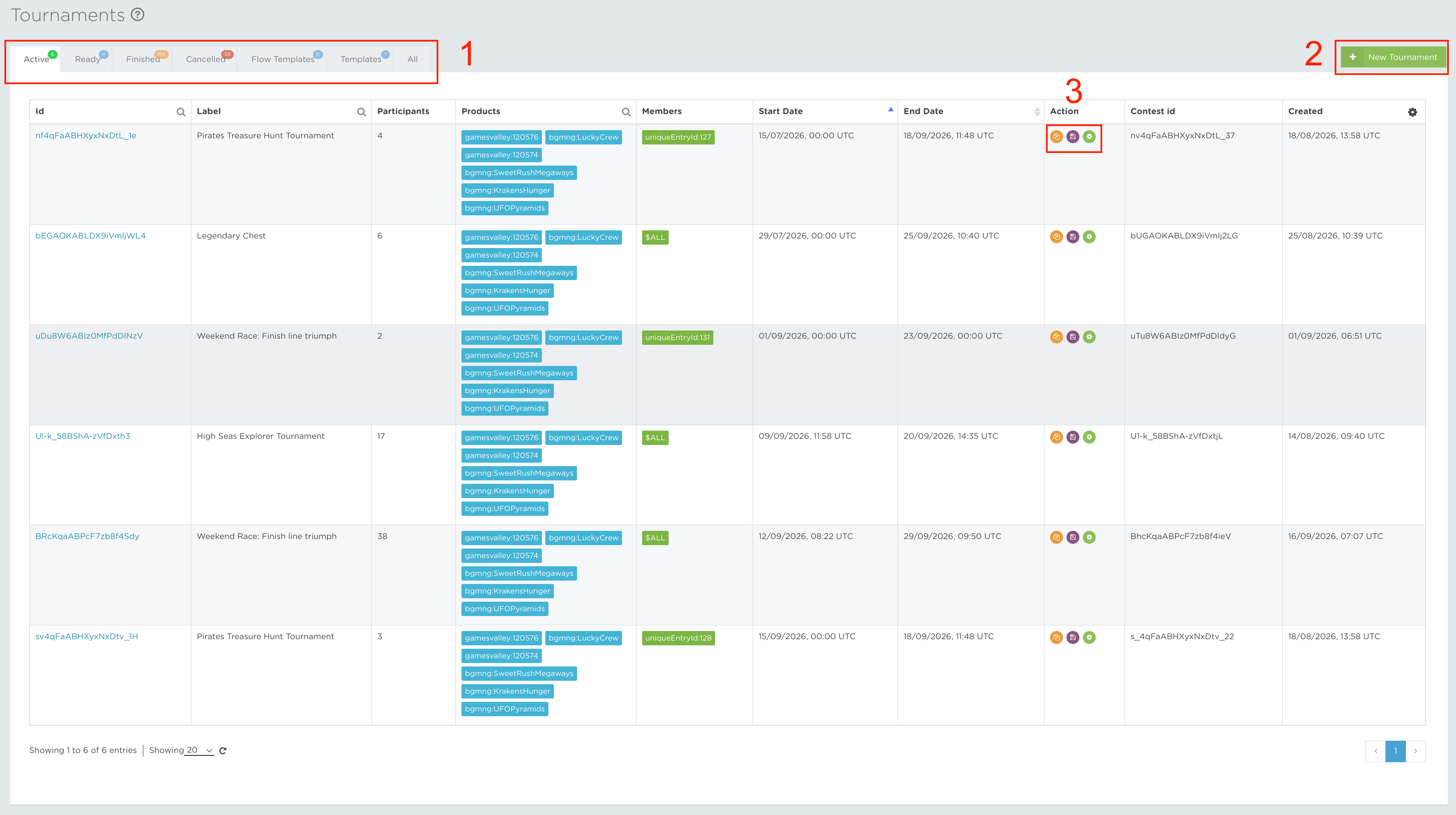
TABS
The Tournaments & Rankings Advance page contains seven tabs that organise Tournaments by their current state or purpose.

- Active – Shows Tournaments that are currently running. Eligible member activity can generate scores, and the leaderboard updates as qualifying results are processed.
- Ready – Shows fully configured Tournaments that are prepared to start. A Ready Tournament becomes Active according to its configured start date and participation rules.
- Finished – Shows Tournaments that have reached their end and no longer accept scoring activity. Their final leaderboard positions can be reviewed and used for reward fulfilment and reporting.
- Cancelled – Shows Tournaments that were stopped before normal completion. Cancelled Tournaments are no longer available for participation or scoring.
- Flow Templates – Contains preconfigured Tournament templates supplied for supported promotional setups. Tournaments do not use the Achievement Flow Builder; this tab provides reusable configurations only. The selection process is covered in the shared Flow templates tutorial.
- Templates – Contains reusable Tournament templates saved by back-office users through Save as Template. Select a template to begin a new Tournament with its fields pre-populated for review and adjustment.
- All – Displays every Tournament, regardless of state, in one list. Use this tab to locate and manage a Tournament without applying a state filter.
NEW TOURNAMENT
Select + New Tournament to open the Tournament creation wizard. The wizard guides you through Settings, Entrants, Products and scoring, Rules, Rewards, Translations, and the final Summary. See the Tournaments creation tutorial for field-by-field guidance.
ACTIONS
The Actions column lets you manage a Tournament according to its current state.
 Edit
EditEdit opens the Tournament configuration so that fields available for its current state can be reviewed and updated. Configuration fields that affect scoring may become restricted after the Tournament starts.
 Copy
CopyCopy creates a new Tournament from the selected configuration. Use it to reuse entrants, products, scoring, rules, and rewards while setting a new schedule or adjusting the campaign.
 Save as Template
Save the Tournament as a reusable configuration for future campaigns. The saved configuration appears in the Templates tab and can be used as the starting point for a new Tournament.