Step-by-step guide to set up a Kafka transformer
Step 1: Transformer creation
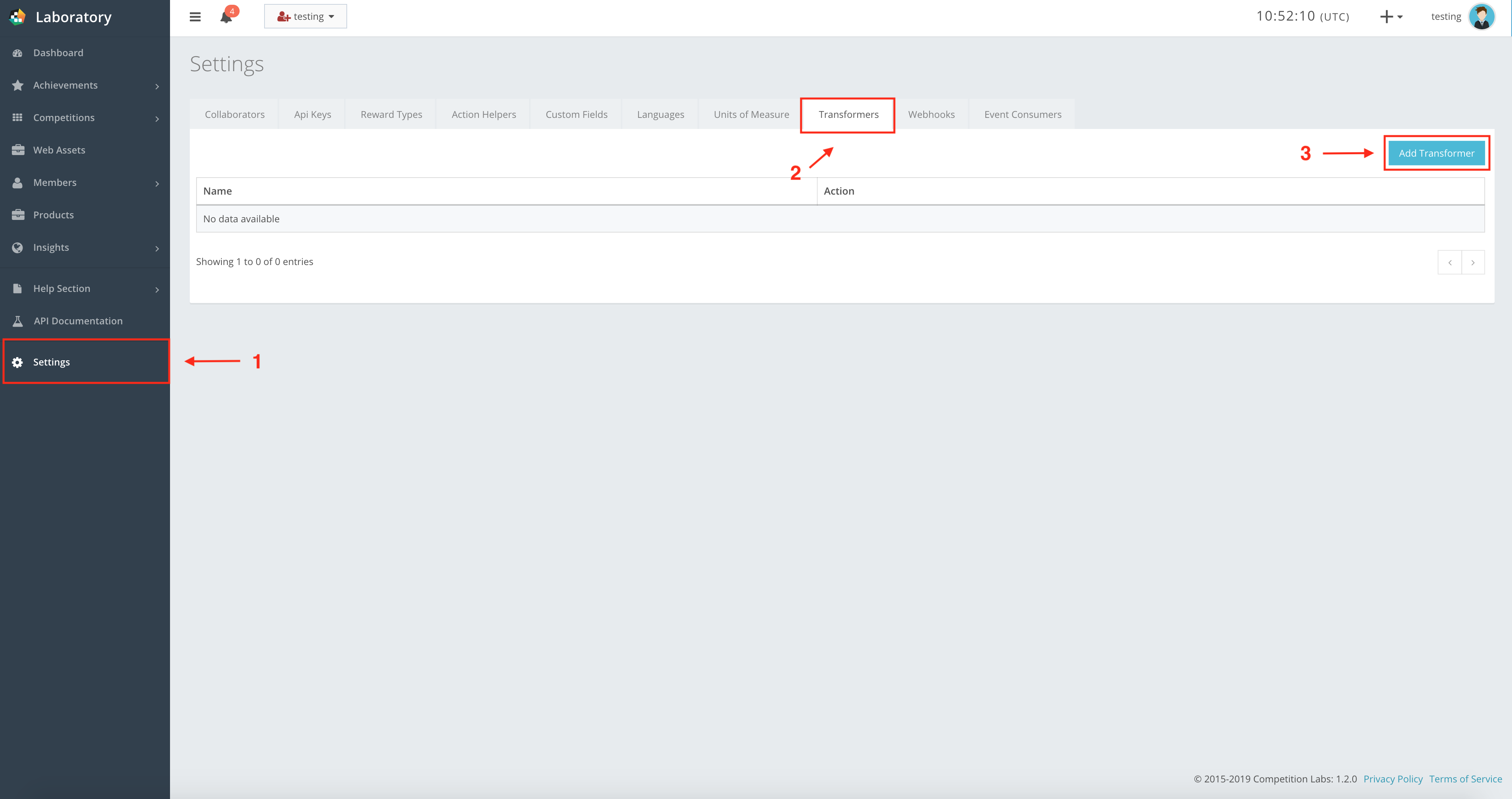
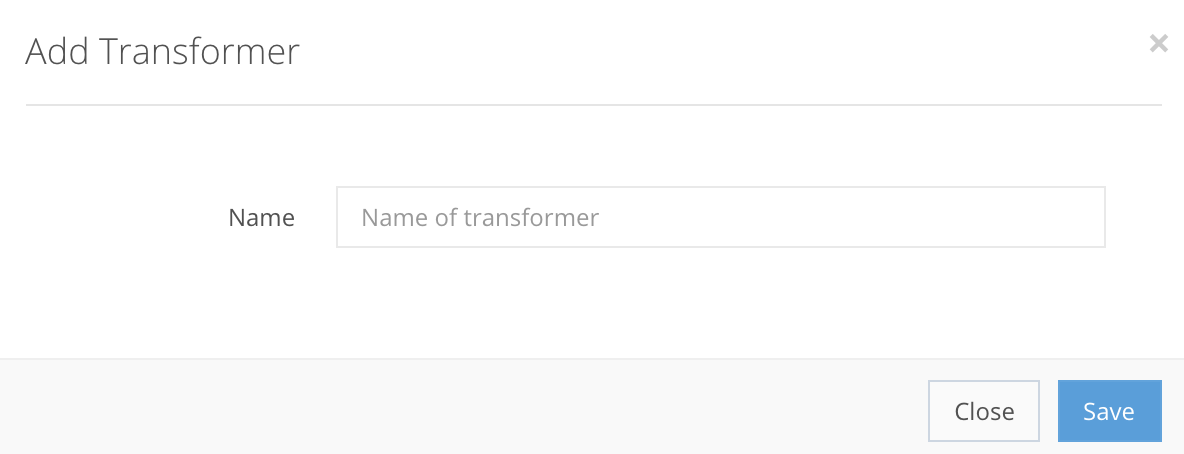
Press Add Transformer for a new pop-up window, as shown in the example below, where you enter the new transformer’s label.
Transformer creation fields
Name StringMandatory| The label of the transformer. |

If you do all the steps correctly, the Transformer will be created in Settings → Transformers, as shown in the example. After creation, you can Edit the transformer and the code of the transformer, or Delete it from the list.
Step 2: Writing code for the transformer
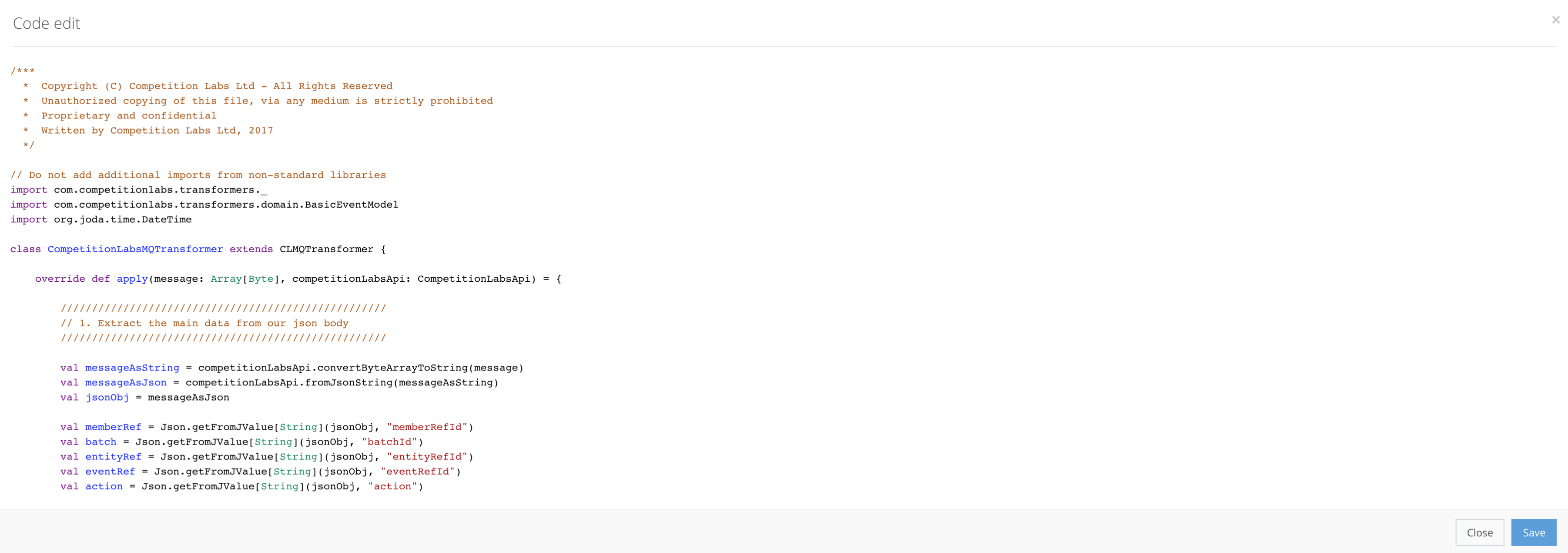
To enter your transformer’s code, press  Code edit for a new pop-up window in which you enter your code, as shown in the example.
Step 3: Event Consumer creation
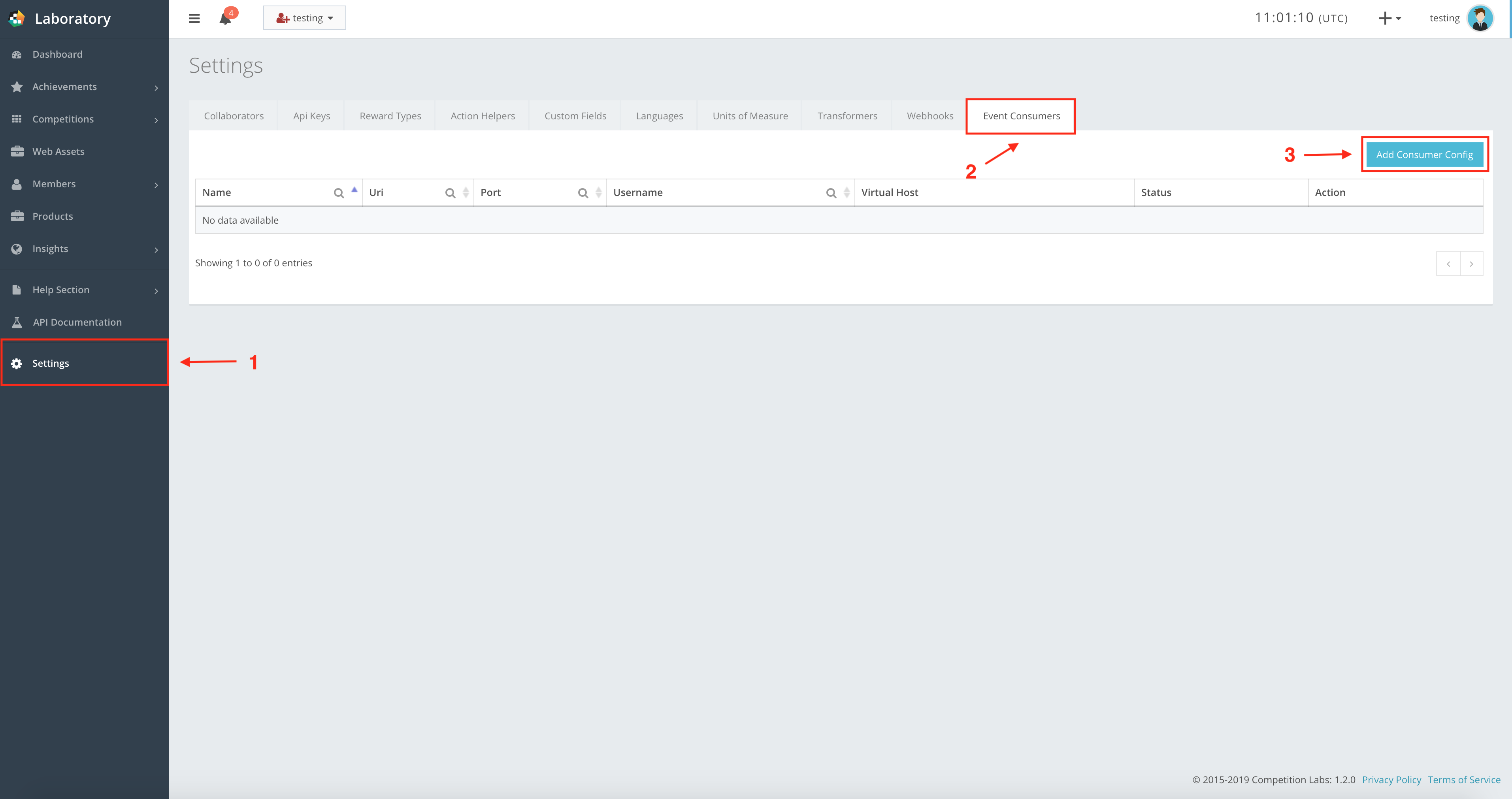
Next, you need to navigate to Event consumers -> Add consumer config for a new pop-up window where you enter the new Consumer information, as shown in the example.
Enter all the information, and in the Transformers field, select the Kafka Transformer. If all the information is correct, press Save to create the event consumer.