Step-by-step guide to set up a Webhook transformer
Step 1: Transformer creation
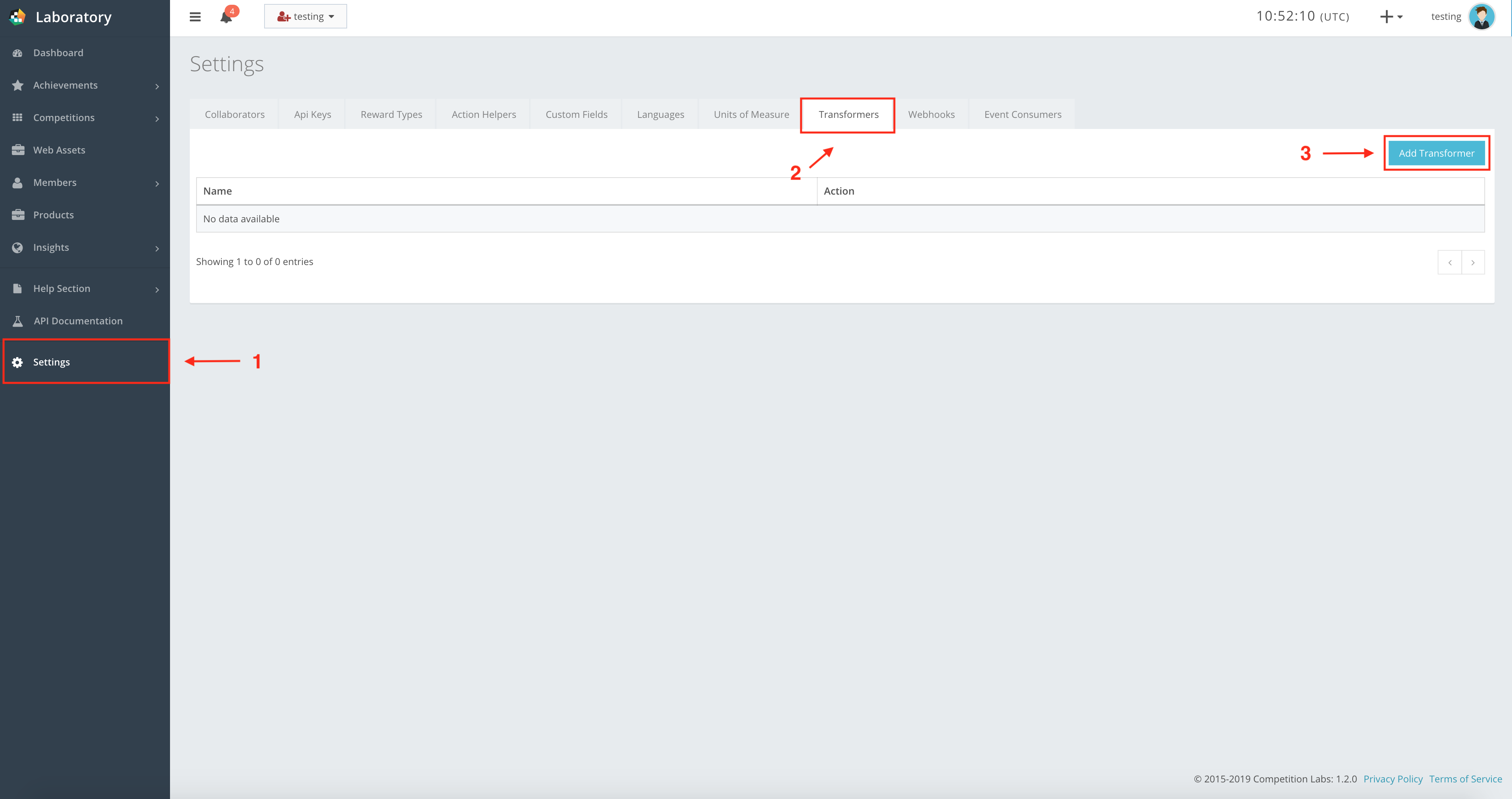
Press Add Transformer to get a new pop-up window where you fill in the new transformer label, as shown in the example below.
Transformer creation fields
Name StringMandatory| The label of the transformer. |
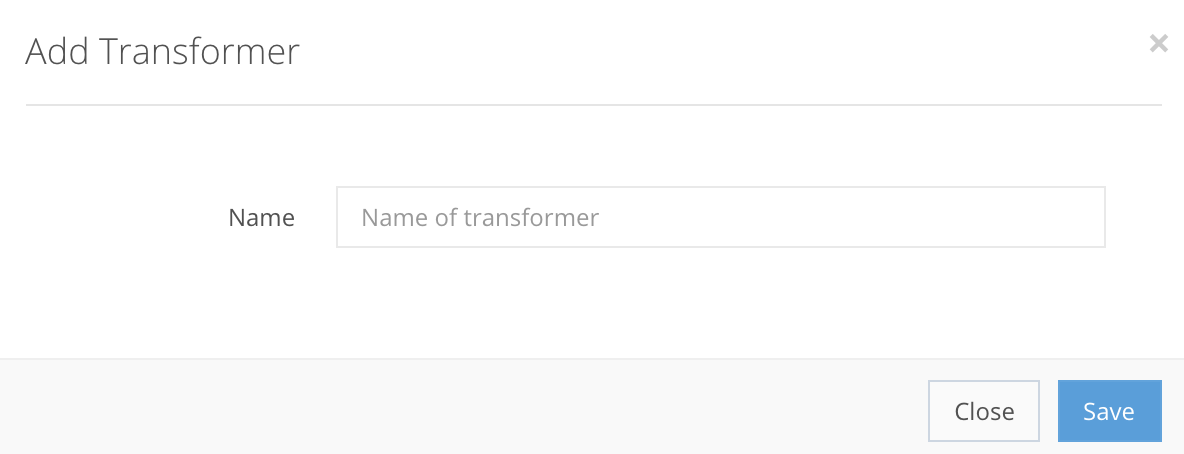

If all steps were correct, the Transformer will be created in the Settings → Transformers, as shown in the example. After creation, you can Edit the transformer, and its code, or Delete it from the list.
Step 2: Writing code for the transformer
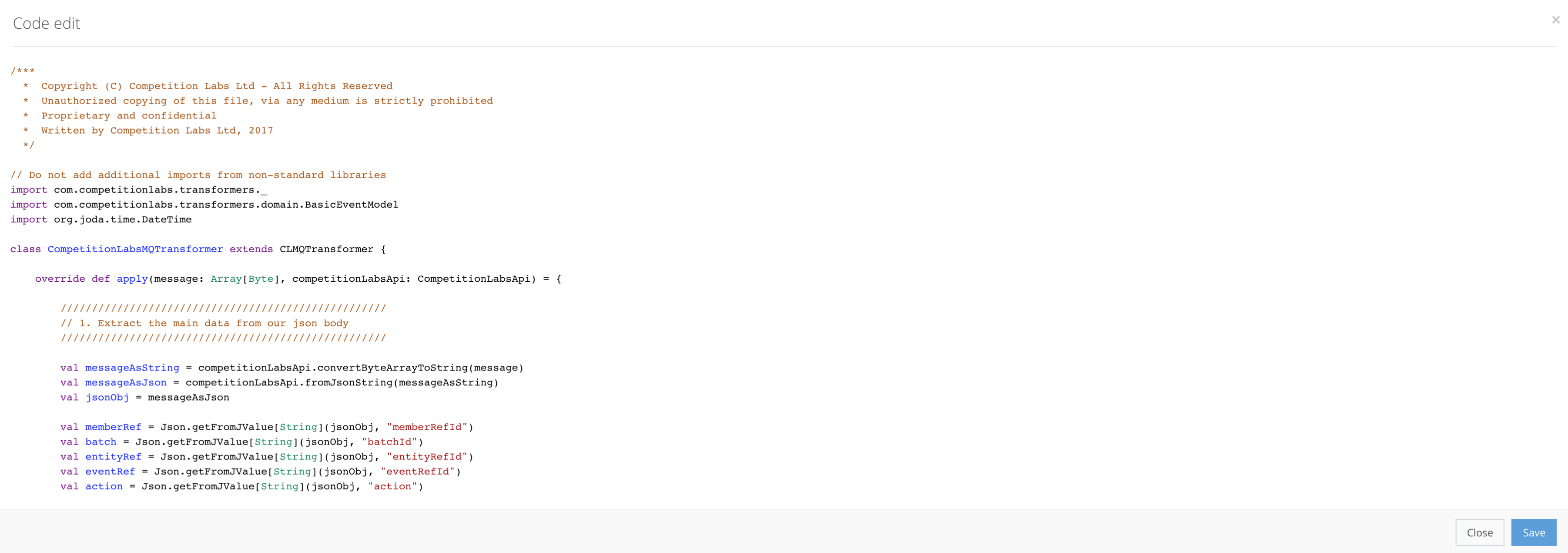
To write your transformer’s code, press  Code edit for a new pop-up window where you enter your code, as shown in the example.
Step 3: Webhook creation
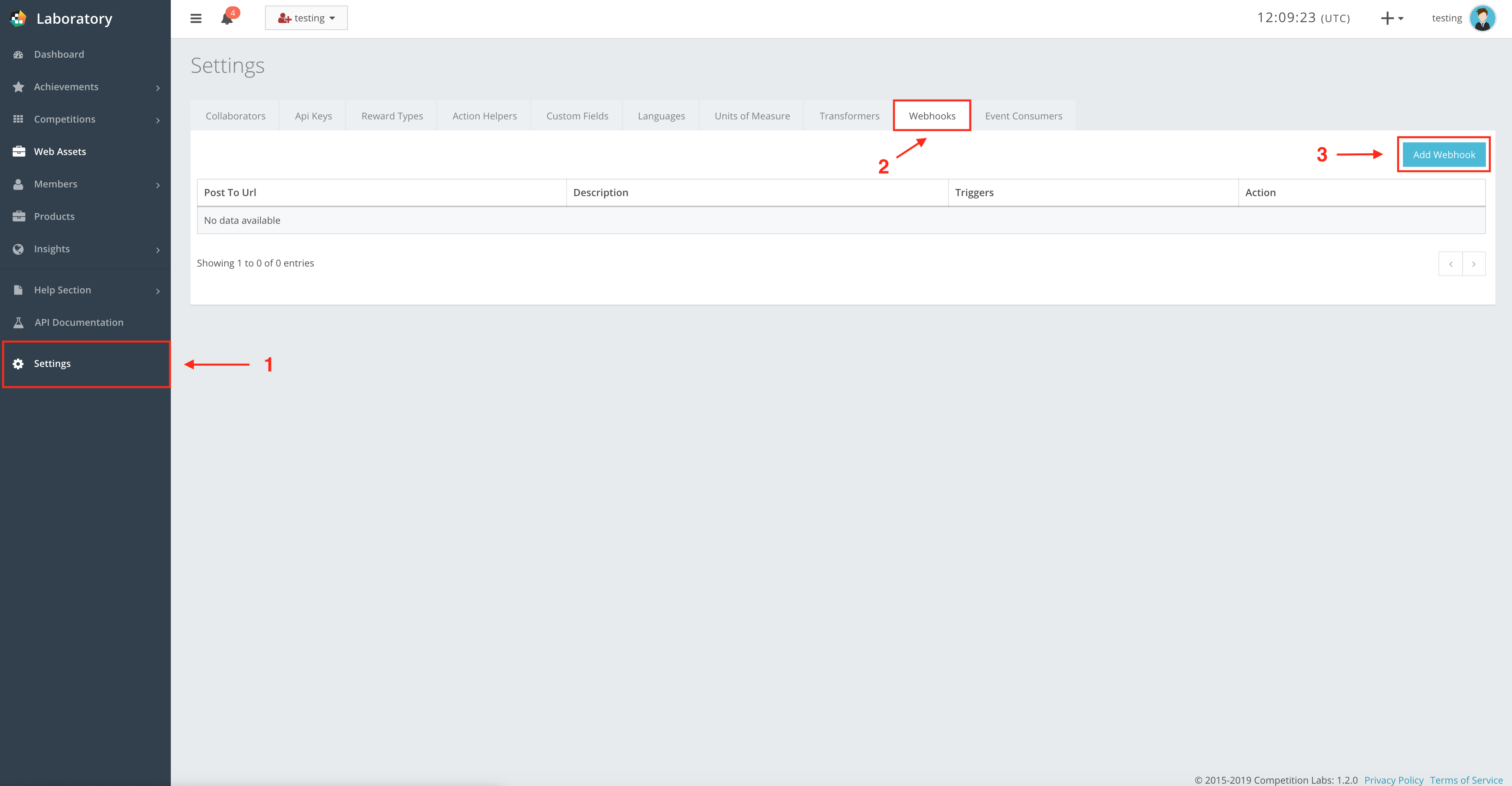
Now navigate to Webhooks and press Add Webhook. A new pop-up window appears where you enter the new Webhook information, as shown in the example.
Fill out all the information, then in the Transformer field, select a Webhook Transformer. If all the information was filled out correctly, press Save to create the Webhook.